A workshop invoice may include parts for two cars, while a recurring supplier may always represent the same type of fleet cost. Splitting items preserves each vehicle’s real cost, and trusted contractors reduce manual work after later KSeF synchronizations. Here is how to set up both without blending fleet expenses.
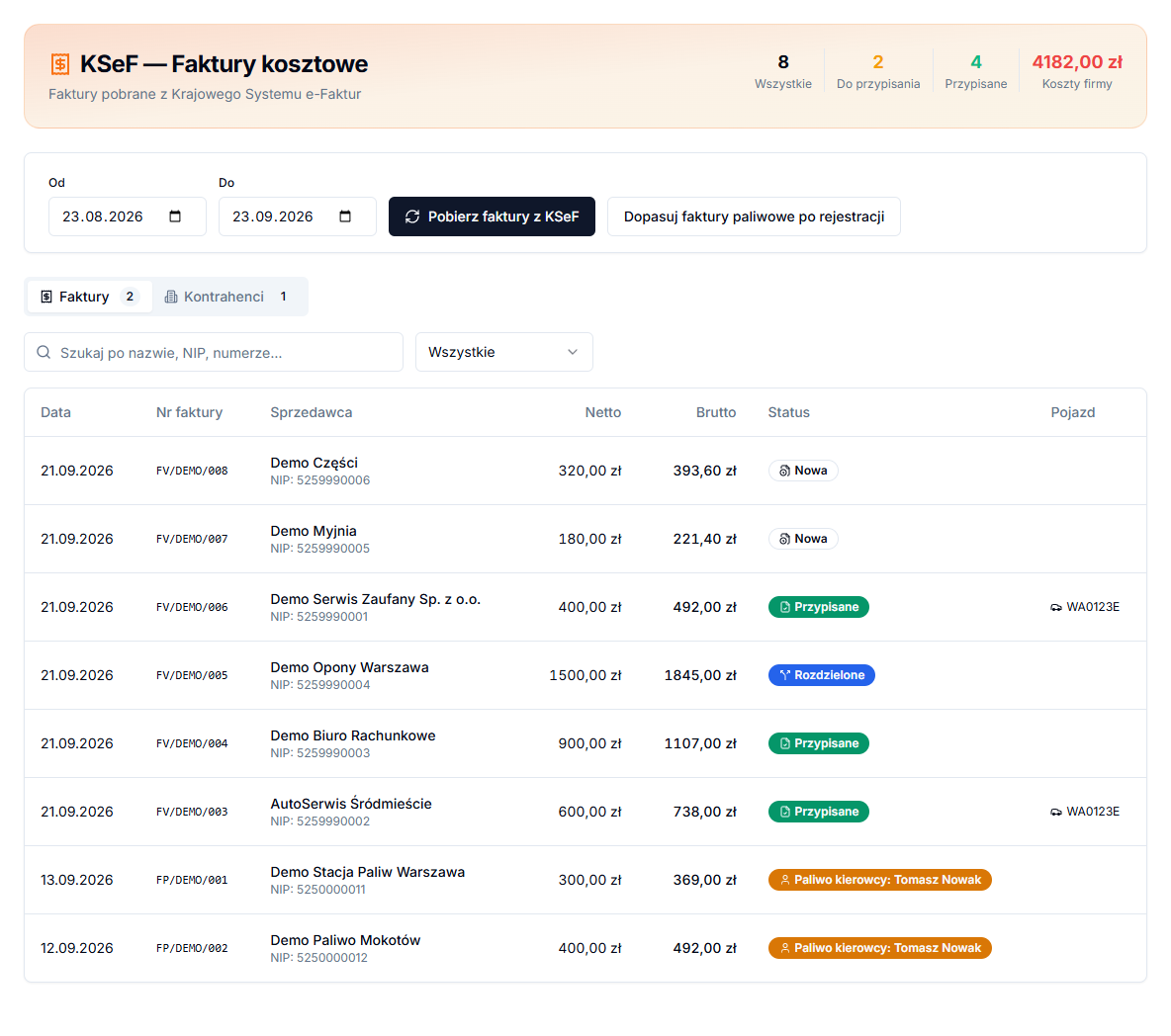
1. Switch to invoice item split
- Go to KSeF and stay on Invoices.
- Open an invoice with items for different vehicles.
- In Invoice items, click Split items.
In split mode, each item has its own Vehicle and Category. Set them separately, for example for a tyre and a repair belonging to different registration numbers, rather than placing the entire invoice on one car.
2. Save item assignments
- Select the correct Vehicle for every item.
- Select Category; add Mileage (km, optional) when relevant.
- Check that items without a vehicle are genuinely company-wide expenses.
- Click Save split.
After saving, the invoice status becomes Split. Return to Full invoice mode only when all of the invoice belongs to one cost. Splitting is for company costs, not for a driver-fuel or employee-cost classification.
Trusted contractors and defaults
- Open the Contractors tab.
- Find the company by name, Tax ID or invoice count.
- Set Default vehicle and Default category.
- In Actions, click the star, Mark as trusted.
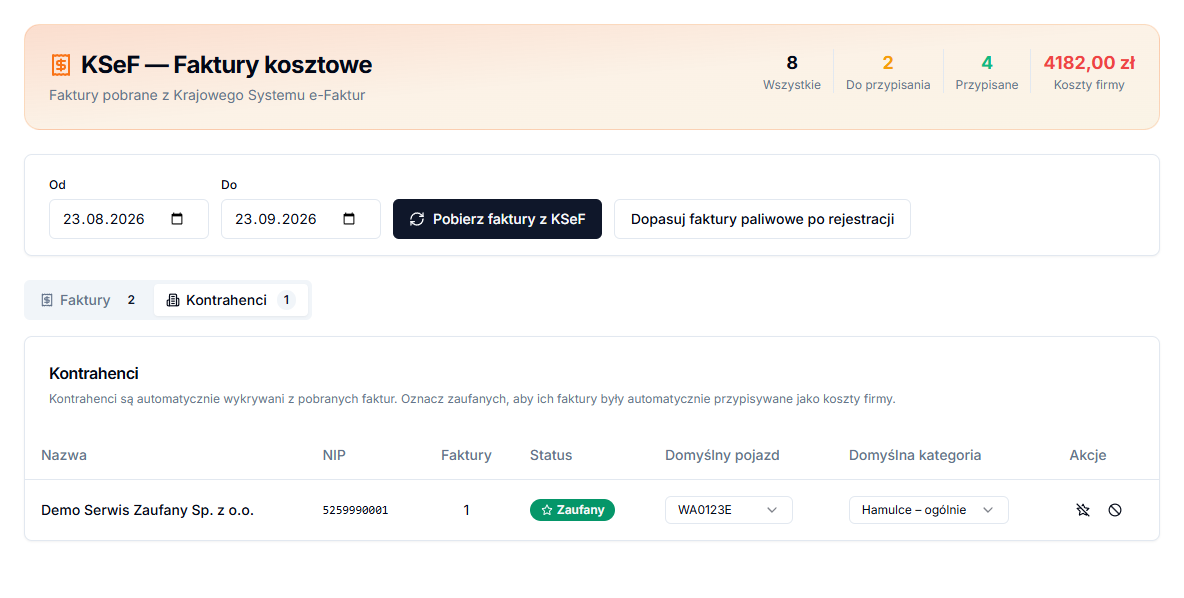
Contractors are detected after invoice synchronization. A trusted contractor’s later invoices are automatically assigned as company costs using the defaults. This suits a regular lessor, a workshop servicing one vehicle or another supplier whose invoices always belong to the company.
Exclude and restore a contractor
If a seller’s invoices must not be automatically treated as company costs, use the ban icon in Actions: Exclude. Its status becomes Excluded. Use the check icon, Restore, to reverse it. The trusted star changes to Remove trust; revisit both settings after a supplier relationship changes.
Check splits and automatic assignments
After clicking Save split, reopen the invoice and verify that every item has the intended vehicle and category. Pay particular attention to labour items, which may cover several parts or an entire visit. If a document has a company-wide part, do not force it onto a vehicle merely to complete the table.
Treat a trusted contractor as a rule that needs review. After a later synchronization, inspect that seller's newly assigned invoices to confirm they still relate to the same vehicle and category. A lessor or workshop can start issuing documents for another car, in which case the defaults need updating.
Do not mark a contractor trusted solely because its first invoice was correct. First establish whether later documents truly have a uniform purpose. For fuel sellers and workshops serving multiple registrations, leave the status Neutral and review each choice. The icons in Actions let you later grant or remove trust, exclude a contractor, or restore one.