Copying weekly Bolt, Uber and FreeNow reports for a whole fleet is slow and prone to errors. Settlement import reads the platform files, matches their data to drivers and shows exactly what will be saved before you confirm it.
Prepare files for the Bolt, Uber and FreeNow settlement import
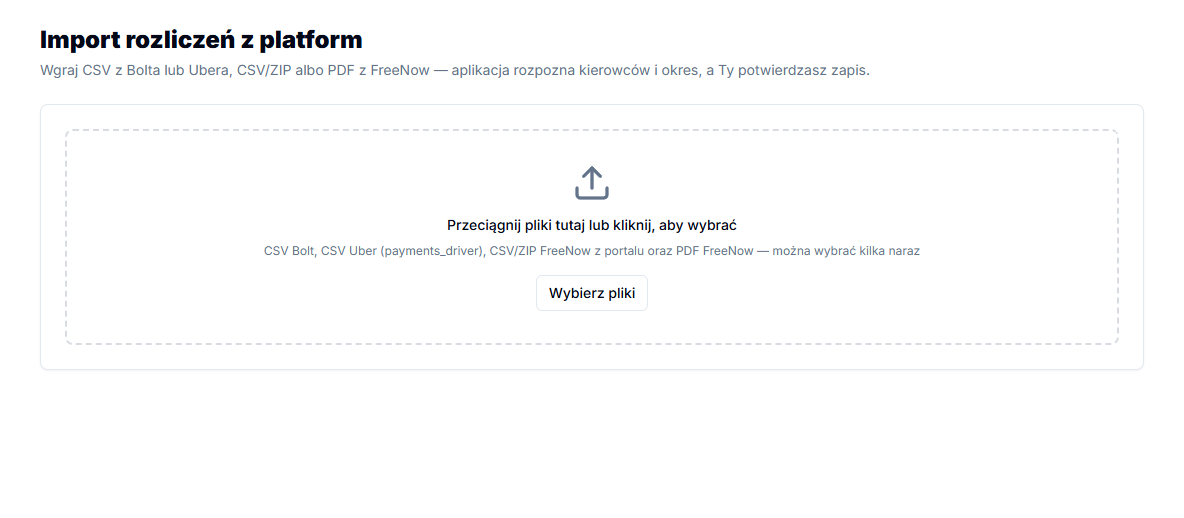
Go to Settlements → Import files. Drag files into the drop zone or select Select files; several files can be selected at once.
- Download the driver CSV report from the Bolt panel.
- Download the payments_driver CSV from Uber, the driver payments report.
- Download a FreeNow CSV or ZIP from its portal. The app also accepts FreeNow PDFs: trip history and self-billing invoice documents.
- Select Analyse files. Every file shows its detected type, warnings and, where available, the detected period.
Check the settlement week and driver matching
The import tries to determine the period from the file data or file name. Check the Settlement period and Active period. If uploaded files refer to different dates, or no period can be detected, choose the correct Settlement week (Mon–Sun) yourself.
A driver is matched first by a stored platform ID, then by email, phone number, or name from the report. A row can be matched, have Multiple matches, or No match. For the latter two, use Rows requiring manual matching, choose a person in Select a driver…, or select Skip.
After a manual selection, the app remembers that driver’s Bolt, Uber or FreeNow identifier, so it can match the driver automatically next time.
Read the preview before saving
Preview — what will be saved appears below. Drivers with a template have a projected Payout; drivers without one use the legacy field layout. New means a new settlement, Overwrite means that week already has a settlement, and No changes means nothing differs. Changed values and their previous values are red.
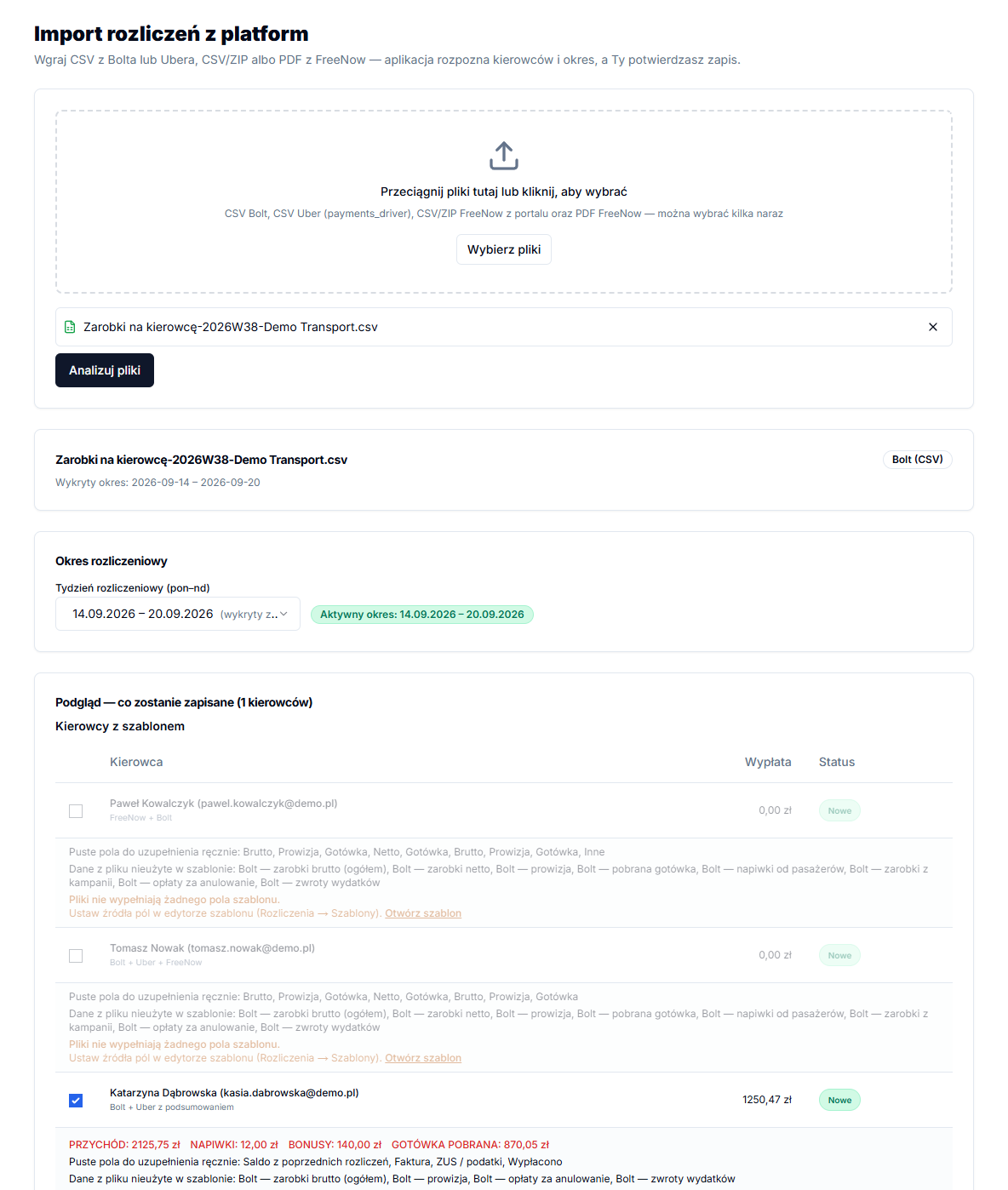
Untick a driver you do not want to save. If the same driver appears in duplicate files, the import reports a conflict; remove the duplicate file and analyse the set again.
Confirm the import and continue to settlements
- Confirm that the selected week and included drivers are correct.
- Click Confirm import.
- In the confirmation window, review the dates and settlement count, then choose Yes, save.
- Check Save result for each driver to see whether the settlement was created or updated.

An example of checking a weekly import
For example, if you upload a Bolt report and an Uber report for one week, first confirm that both cover the same Monday–Sunday range. Then compare the drivers in the preview with the people in the reports. The import combines platform data in a driver settlement, but it does not replace a business check: tips, cash and commissions still need to land in the correct template fields. This matters in a taxi fleet when one platform report arrives later than the others.
If a report contains an unmatched driver, do not save it as a trial. Select the right person in manual matching or choose Skip. When the issue is an incorrect platform identifier, manual selection lets the app remember the correct relationship for later weeks.
Re-importing the same week does not automatically create a second settlement. The preview shows Overwrite and red values; only confirmation saves imported data. You can also reach this feature from Settlements → Weekly settlements using Import files.