You settle each driver once a week: you enter the amounts from the platforms' reports and the system calculates the rest using the template.
1. Open the week's settlements
- Go to Rozliczenia → Rozliczenia tygodniowe (Settlements → Weekly settlements).
- In the date field, choose the week you're settling.
- Click Generuj / Edytuj (Generate / Edit). You can also go straight to Szczegóły rozliczenia (Settlement details) in the menu.
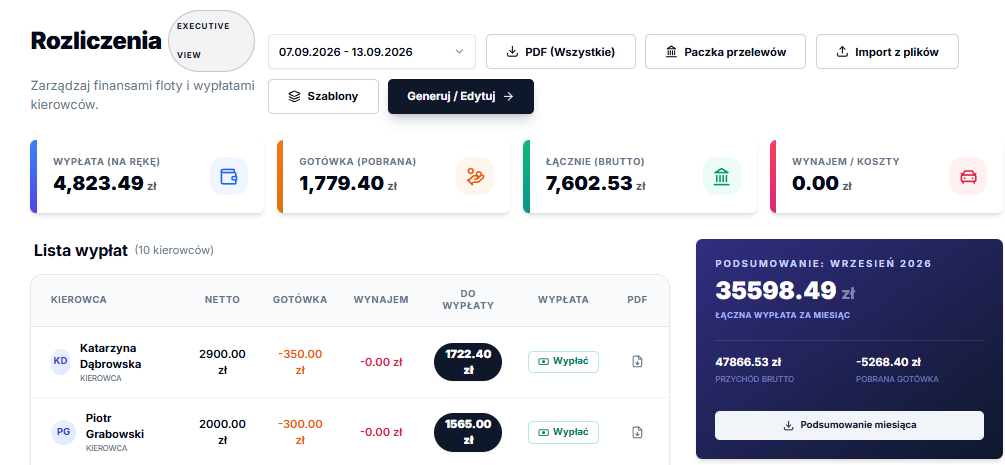
2. Choose a driver
On the Rozliczenia szczegółowe (Settlement details) screen, each driver has a card. The card shows the status (Rozliczony (Settled) or Do rozliczenia (To settle)), the template name and the payout amount. Before you start, check the date range at the top.
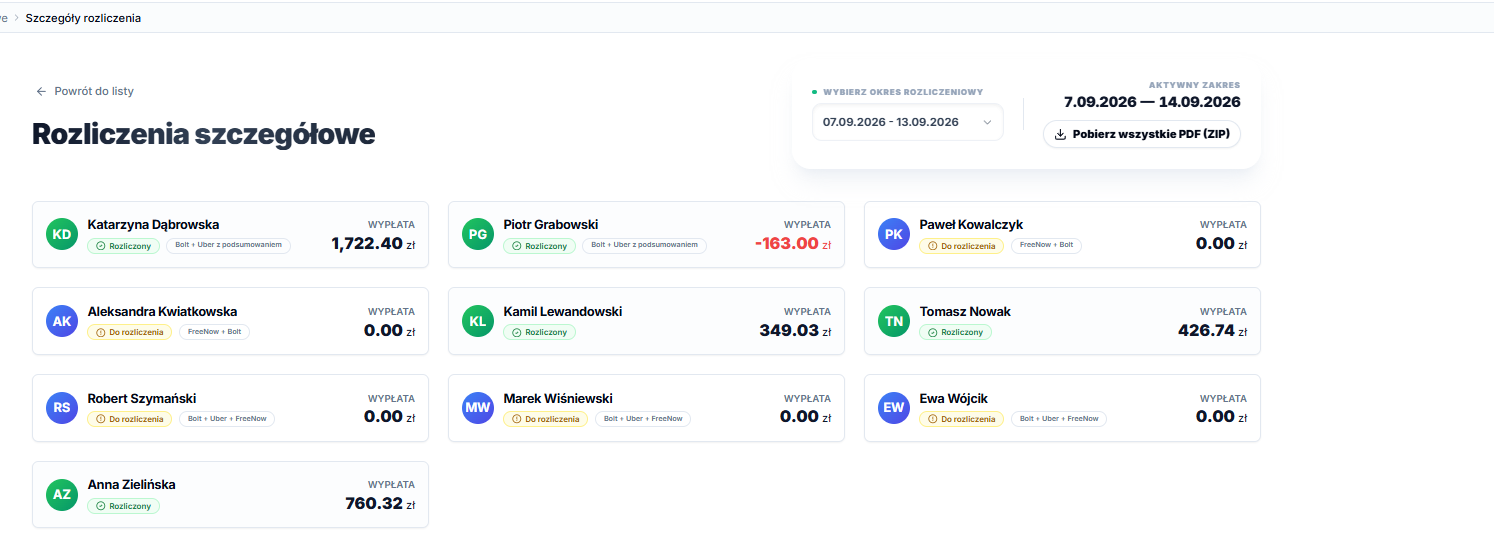
3. Enter the amounts
Click a driver's card to expand it. You'll see the sections of your template.
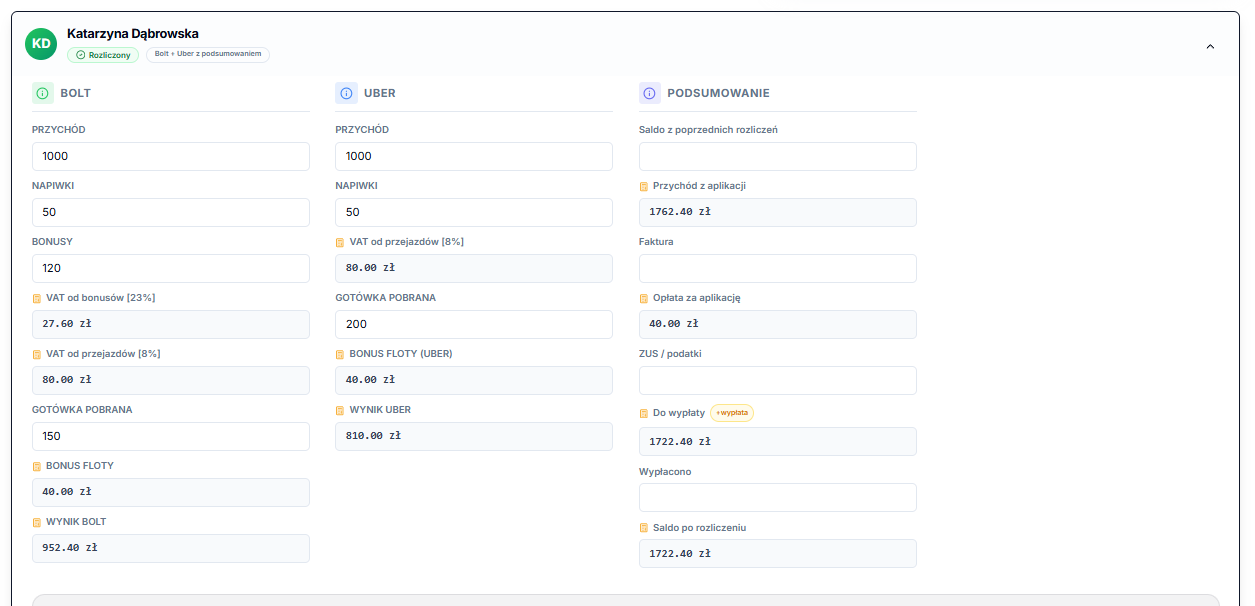
- Fill in the white fields with amounts from the Bolt and Uber reports for the same week.
- The grey fields with a calculator icon are calculated automatically as you type.
- If something doesn't apply to the driver, enter 0 or leave the field empty.
- Enter cash collected by the driver as a positive amount. The template deducts it for you.
4. Save
At the bottom of the card, click Zapisz rozliczenie (Save settlement). Pokaż szczegóły (Show details) lists the items that make up the payout.

Correcting a saved settlement
Open the driver's card, correct the amounts and click Zapisz rozliczenie (Save settlement) again. The system will ask what to do with the existing settlement:
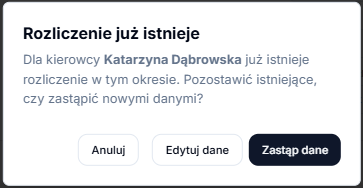
- Zastąp dane (Replace data): saves the new amounts instead of the old ones. No second settlement is created.
- Edytuj dane (Edit data): closes the window so you can keep editing the form.
- Anuluj (Cancel): changes nothing.
A driver without a template
If a driver has no template assigned, the card shows the standard form (Bolt, FreeNow, Uber, Other). To settle the driver with your own template, assign one (see Assigning a template).