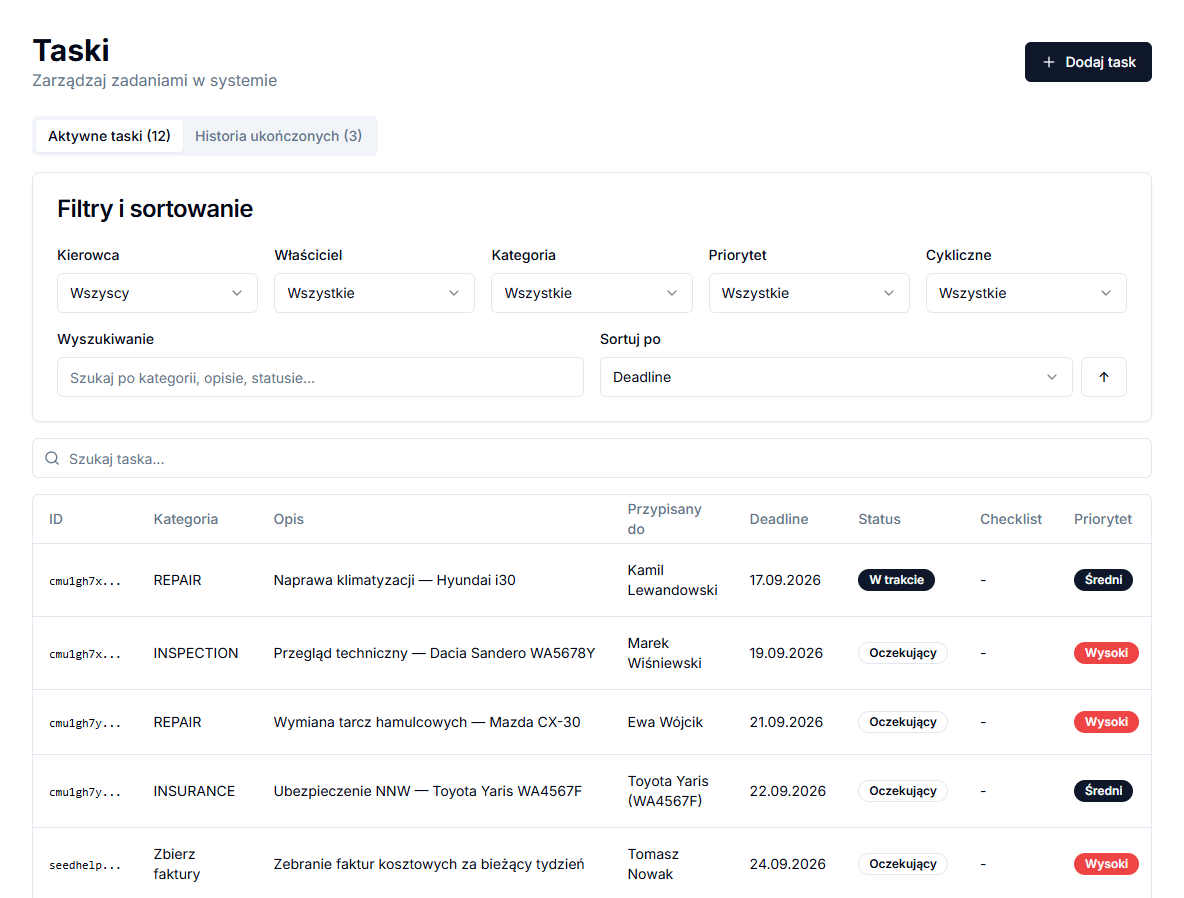
Inspections, oil changes, insurance policies and lease installments are easy to lose track of in a phone calendar or on paper. Fleet tasks in TwojaFlota tie a deadline to a specific vehicle, driver or administrative job and show what is overdue. This guide covers adding a task, assigning it, and completing it with a checklist.
Add a fleet task
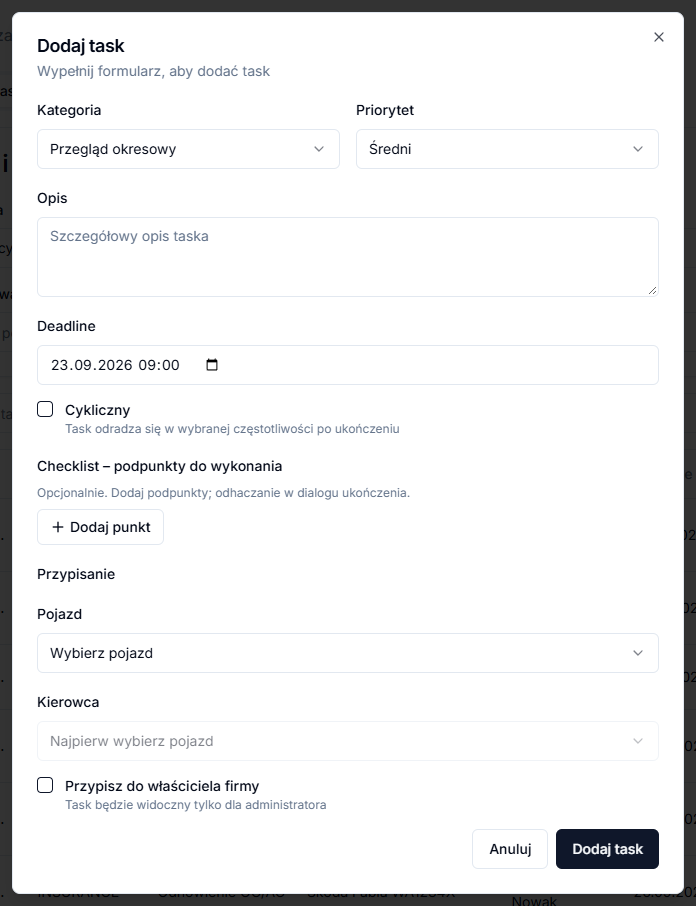
- Open Tasks in the menu and click Add task.
- Choose a Category (e.g. Periodic inspection, Oil and filter change, Insurance (OC / AC), Lease payment, or an administrative category) and a Priority.
- Enter a Description and set the Deadline — for one-off tasks this is a specific date and time.
- When the category concerns a vehicle, select a Vehicle; the panel then lists only drivers assigned to that vehicle and auto-selects the sole candidate.
- Save with Add task.
Assigning to a vehicle, driver or owner
Administrative categories, such as Invoices for accountant (checklist) or Employee settlements, have no vehicle field — the panel pre-checks Assign to the company owner automatically, since these concern the whole company rather than one car. For service categories, picking a vehicle with no assigned driver also results in the task going to the owner, and the form explains this with a message.
Checklist and completing a task
Under Checklist – items to complete you add items with Add item; when you change the category, the panel offers the checklist last used for that category or a default set (for an oil change: engine oil, oil filter, air filter, cabin filter). You finish a task with the Complete action on the list; the dialog lets you tick off the checklist, and once every item is checked the panel asks whether to close the task. A service-category task also requires Mileage (km) and Cost (PLN) in that dialog — saving it creates an entry in the vehicle's service history.
Filters, sorting and recurring tasks
Above the list, Filters and sorting narrow the view by Driver, Owner, Category, Priority and Recurring, and the search box matches category, description and status. Sorting works by Deadline, Priority or Creation date. The Active tasks tab shows pending and in-progress items, while Completed history lists finished tasks that can be restored.
Checking Recurring when creating a task lets you pick a frequency (weekly, every 2 weeks, monthly, every 3 months, yearly, or a custom number of days), an execution time, and how many days in advance the task should appear as pending. Completing such a task immediately creates the next instance with a new deadline — you never add it manually.