Tasks with a deadline — an inspection, an oil change, a lease payment — can appear on the owner's shared Google calendar so they are visible outside the panel, for example on a phone. The integration works through a Google service account, not by the administrator signing in to Google. This guide covers configuring the connection, sharing the calendar and syncing existing tasks.
Set up the Google service account
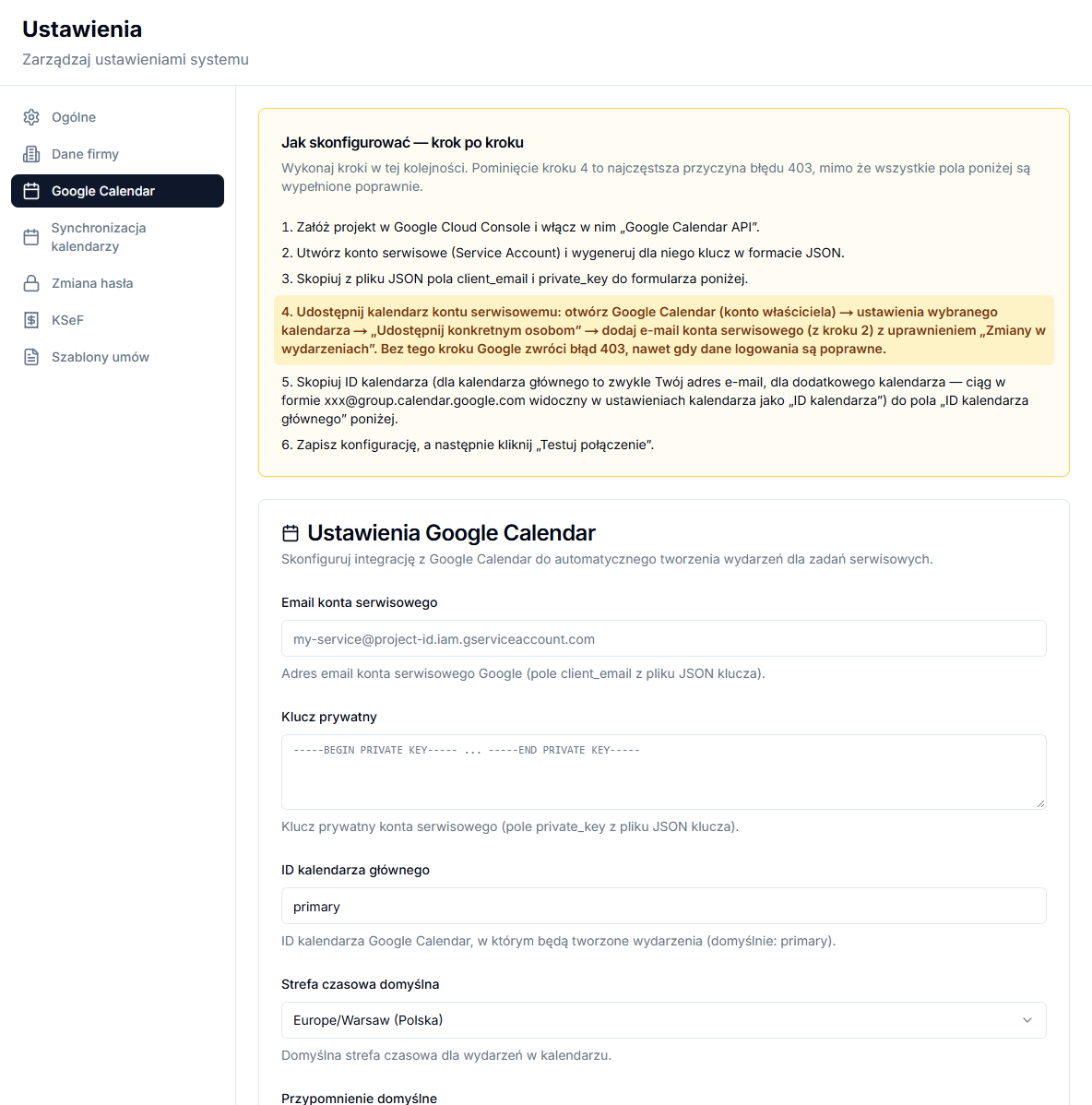
- In Google Cloud Console, create a project and enable "Google Calendar API".
- Create a service account and generate a JSON key for it.
- In the panel, open Settings → Google Calendar and copy the client_email field from the JSON file into Service account email, and private_key into Private key.
- In Google Calendar (owner account), open the settings of the chosen calendar → "Share with specific people" → add the service account email with the Make changes to events permission.
- Enter the Primary calendar ID (for the primary calendar this is usually the owner's email address; for an additional calendar it is a string such as xxx@group.calendar.google.com), set the Default time zone, Default reminder and Default reminder method, then click Save configuration.
Test the connection
After saving, click Test connection. If the test fails, the Full configuration diagnostics link below the buttons shows more detail than the error message alone.
Sync existing tasks
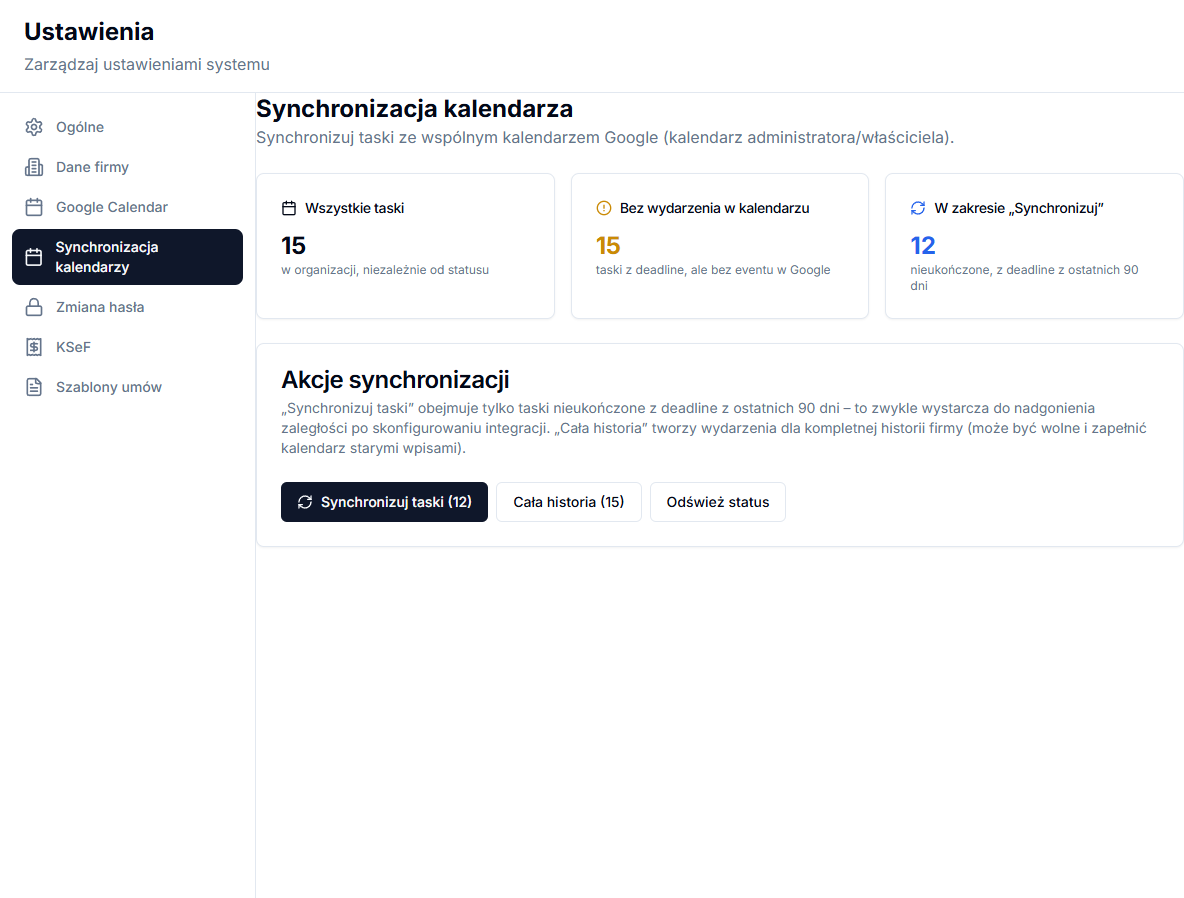
The Settings → Calendar synchronization screen shows three counters: All tasks in the company regardless of status, tasks Without a calendar event, and the number of tasks In “Synchronize” scope. The Synchronize tasks button covers only incomplete tasks with a deadline in the last 90 days — usually enough to catch up right after configuring the integration. Full history creates events for the company's complete history; the panel asks for confirmation before running it, since it can take a long time and fill the calendar with old entries. After a sync finishes, the report table shows the result per task in the Task and Calendar columns.
A calendar error never blocks a task
Saving or completing a task never waits on Google Calendar. When creating or updating an event fails, the panel still saves the task and shows a separate warning — "Warning: calendar not synced" when adding a task, "Calendar sync error" when completing one. In that case, check the permissions in Google Calendar and run Test connection again rather than saving the same task repeatedly.