Route history answers where a given vehicle actually drove on a specific day, and how long it sat with the ignition on. It uses the same GPS positions as the live map, just grouped into trips and stops. This guide covers picking a day, reading the summary, and reviewing the trip list.
Pick a vehicle and a day
- On the Map, select a vehicle from the Fleet list or by clicking its marker.
- Open the History tab below the map.
- Click a day in the chip list (up to 14 recent days with distance and top speed) or pick a date in the calendar field — data is available for the last 60 days.
Days with no real trip (distance under 0.5 km) are shown as Stop and greyed out in the list, making it easier to find a day with an actual route.
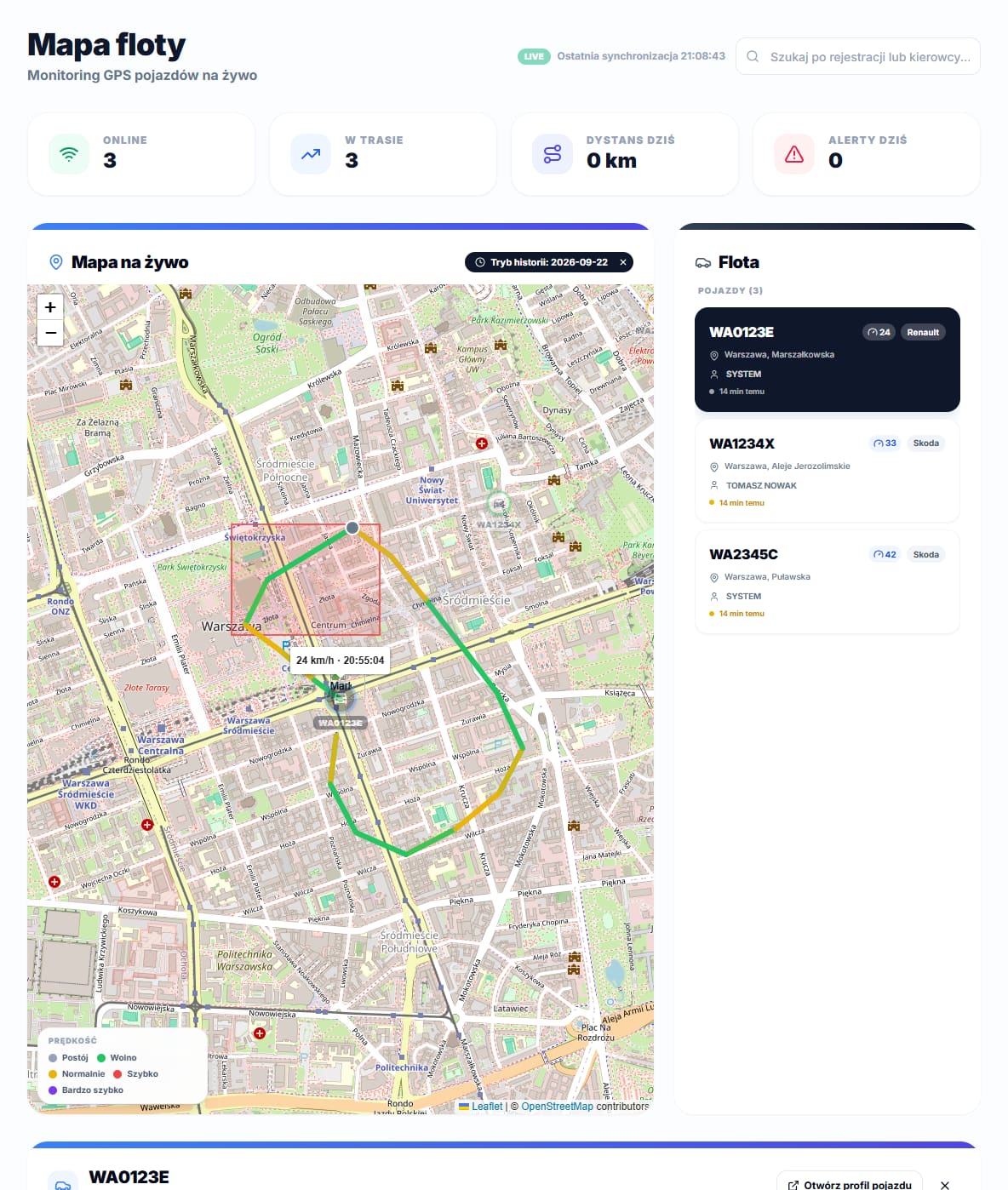
Daily summary
Once a day is selected, the panel calculates six figures: Distance, Driving time, Stop time (with a note on how much of that time the ignition stayed on, when the tracker reports ignition state at all), Work — the time between the first and last movement that day, Avg. speed and Max speed. On the map, the route is colored with the same scale as live-map markers, so fast stretches stand out immediately.
Trip and stop list
Below the summary, a table merges trips and stops into one chronological list with columns Type, Start, End, Duration, Distance, Max speed and Address. Clicking a Trip row jumps the map to where that trip started, and clicking a stop row jumps to where the vehicle stopped; a stop shows Stop, or Stop with ignition on when the tracker reported the ignition staying on. Gaps in movement shorter than 3 minutes are not counted as a separate stop, so the list is not cluttered with momentary halts at traffic lights. A day with recorded GPS points but no detected trip shows No recorded trips on this day instead of the table.
The Work figure in the daily summary — the time between the first and last movement — is an independent way to check how long a vehicle was actually out on a given day, useful for verifying a driver's working hours regardless of Bolt, Uber or FreeNow settlement files.