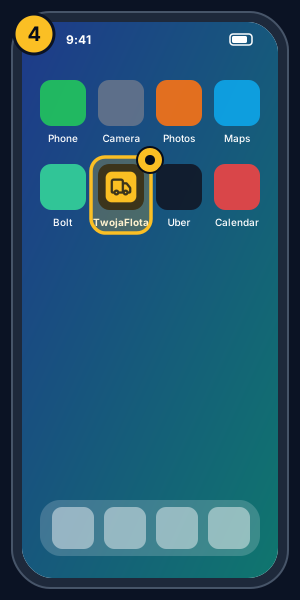
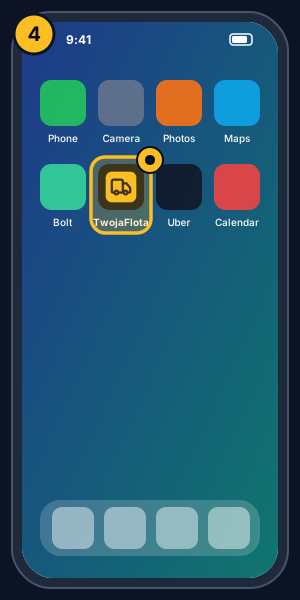
This is not an app from a store. Add the TwojaFlota panel to your phone home screen, then open it like a regular app: with a TwojaFlota icon, full screen and no browser bar. It updates automatically.
Before you start
You need your company panel address, for example yourcompany.twojaflota.com.pl, plus your login and password — you set the password yourself from the link in your company's invitation email.
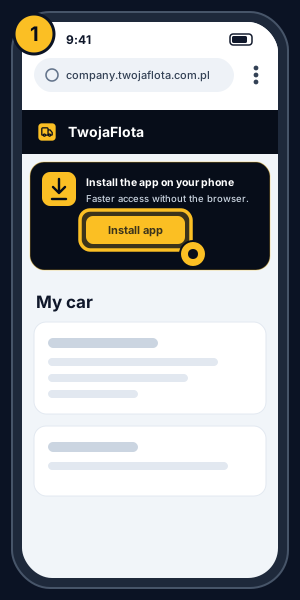
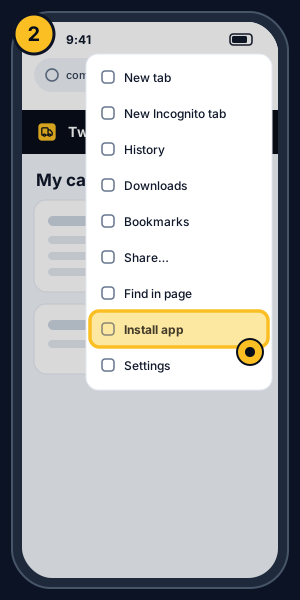
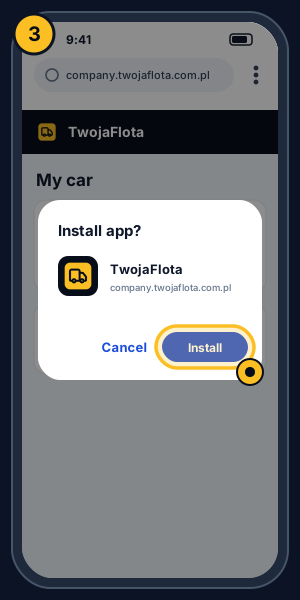
In the pictures, the yellow frame and dot show where to tap. Menus may look slightly different depending on your phone and browser version.
Android (Chrome)
- Open the panel address in Chrome and sign in.
- If you see the Install the app on your phone banner at the top, tap Install app.
- If there is no banner, open the ⋮ menu in the top-right corner, choose Install app or Add to Home screen, then confirm.
In Samsung Internet, open the ≡ menu, choose Add page to, then Home screen.
iPhone (Safari)
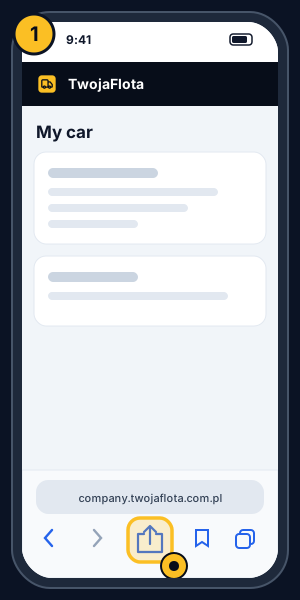
- Open the panel address in Safari and sign in.
- Tap Share, the square with an arrow. On newer iOS versions it may be under the ⋯ icon near the address bar.
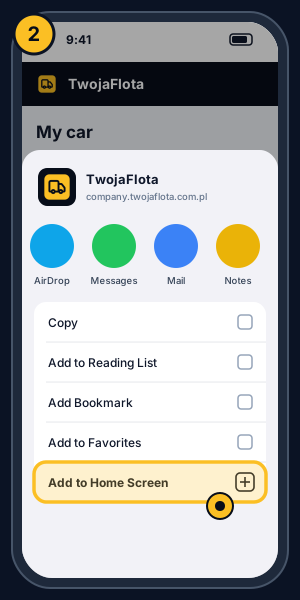
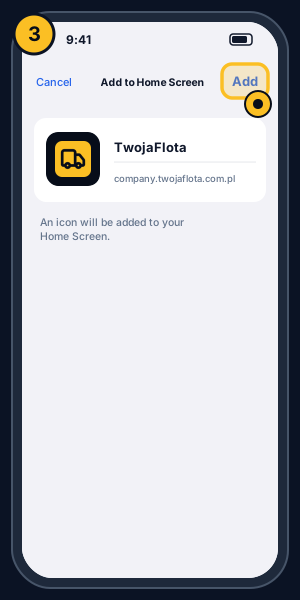
- Scroll down, choose Add to Home Screen, then tap Add.
This option may not be available in other iPhone browsers. Safari is the most reliable choice.
First launch
Tap the TwojaFlota icon on your phone and sign in once. After that you will go straight to My car.
Something not working?
- Cannot see the install option? Check that you are using the right browser, leave private or incognito mode, and look on your home screen or in the app drawer — the icon may already be there.
- Banner gone or dismissed? Use the browser menu as described above.
- Forgot your password? On the driver login page, tap Nie pamiętam hasła (Forgot password) — you'll get an email link to set a new one.
- Want to remove it? Delete the icon just as you would any other phone icon.