Finding your next driver usually takes longer than onboarding one. The Driver marketplace lists applications from drivers who left their own details looking for a fleet to work with on Bolt, Uber or FreeNow. This guide shows how to browse the applications and how to request contact details for one.
Where the applications come from
Applications come from public, driver-facing TwojaFlota forms, where drivers leave their name, phone number, city, chosen platforms and whether they own a car or are looking to rent one. Every application lands in one shared marketplace visible to every fleet partner in the system, not just one company, which is why the list spans several cities at once.
1. Open the marketplace and filter the list
- In the menu, choose Drivers → Driver marketplace.
- The city drop-down defaults to All cities — pick a specific city to narrow the list to your fleet's area.
- The second filter, Vehicle status (Any) by default, narrows it to drivers who selected Wants to rent a car or Owns a car.
- The third filter, Platform (All) by default, limits the list to one platform.
- Clear filters appears once you've filtered something, and resets the list.
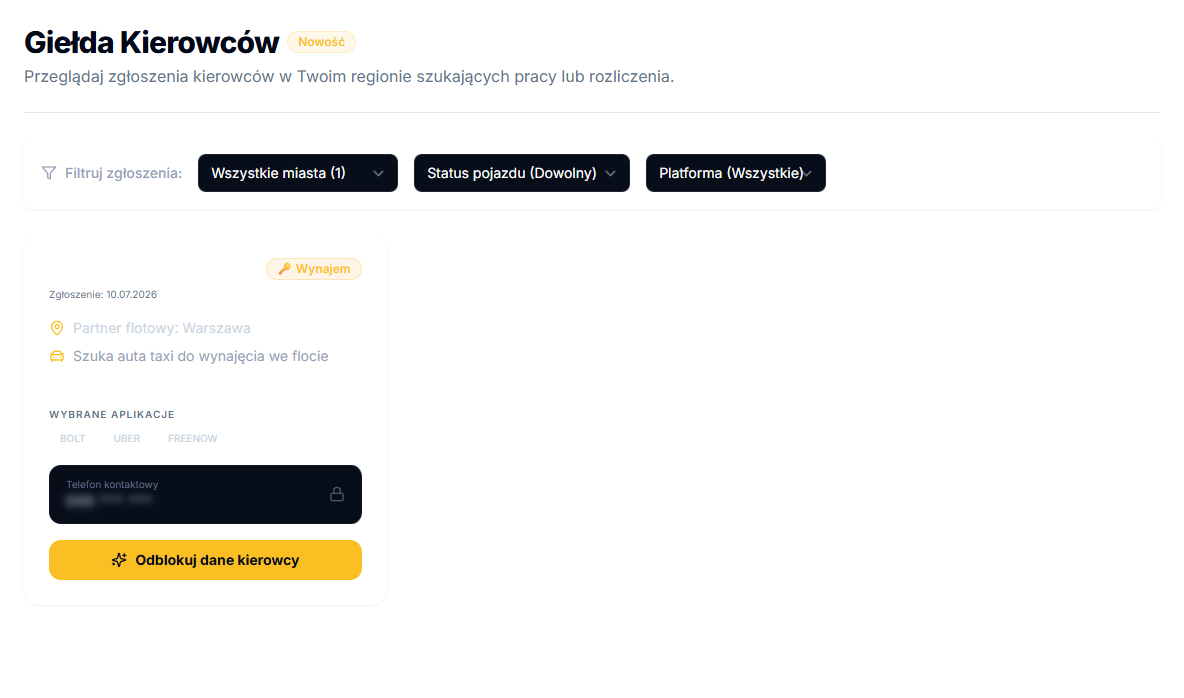
2. Read an application card
Each card shows the driver's name, the application date, an Own or Rental badge, a Fleet partner line naming the city, the selected platforms, and a Contact phone section with a blurred number — you won't see the full number until you request it.
The Own badge means the driver already has a car and is looking for a fleet to settle with; Rental means the driver has no car and wants to rent one from your fleet. That distinguishes an application that needs a vehicle from one where only pairing the driver to your settlements matters.
3. Request the contact details
- Click Unlock driver details on the card you're interested in.
- The panel confirms with Request sent! and notifies the TwojaFlota team.
- The team verifies the driver's status in that city and, per the confirmation dialog, calls you back within about 2 hours with the driver's phone number to help connect them to your account.
After you get the contact
Once the team gives you the number and the driver agrees to work with you, add them to the system, prepare a contract, and set up their panel access as you would for any other driver.